
day05
一、学习目标
1.自定义指令
- 基本语法(全局、局部注册)
- 指令的值
- v-loading的指令封装
2.插槽
- 默认插槽
- 具名插槽
- 作用域插槽
3.综合案例:商品列表
- MyTag组件封装
- MyTable组件封装
4.路由入门
- 单页应用程序
- 路由
- VueRouter的基本使用
二、自定义指令
1.指令介绍
内置指令:v-html、v-if、v-bind、v-on... 这都是Vue给咱们内置的一些指令,可以直接使用
自定义指令:同时Vue也支持让开发者,自己注册一些指令。这些指令被称为自定义指令
每个指令都有自己各自独立的功能
2.自定义指令
概念:自己定义的指令,可以封装一些DOM操作,扩展额外的功能
3.自定义指令语法
全局注,在main.js中
//在main.js中
Vue.directive('指令名', {
  "inserted" (el) {
    // 可以对 el 标签,扩展额外功能
    el.focus()
  }
})
局部注册,在Vue组件中
//在Vue组件的配置项中
directives: {
  "指令名": {
    inserted () {
      // 可以对 el 标签,扩展额外功能
      el.focus()
    }
  }
}
使用指令
注意:在使用指令的时候,一定要先注册,再使用,否则会报错 使用指令语法: v-指令名。如:
<input type="text" v-focus/>注册指令时不用加v-前缀,但使用时一定要加v-前缀
4.指令中的配置项介绍
inserted:被绑定元素插入父节点时调用的钩子函数
el:使用指令的那个DOM元素
5.代码示例
需求:当页面加载时,让元素获取焦点(autofocus在safari浏览器有兼容性)
App.vue
<template>
  <div>
    <h1>自定义指令</h1>
    <input v-focus type="text">
    <!-- <input v-focusAll type="text"> -->
  </div>
</template>

<script>
export default {

  //局部注册指令
  directives:{
    //指令名
    focus:{
      inserted(el){
          el.focus()
      }
    }
  }
}
</script>

<style>

</style>
三、自定义指令-指令的值
1.需求
实现一个 color 指令 - 传入不同的颜色, 给标签设置文字颜色
2.语法
1.在绑定指令时,可以通过“等号”的形式为指令 绑定 具体的参数值
<div v-color="color">我是内容</div>
2.通过 binding.value 可以拿到指令值,指令值修改会 触发 update 函数
directives: {
  color: {
    //el是元素,bindbing是传入的值
    inserted (el, binding) {
      el.style.color = binding.value
    },
      //update 指令的值修改的时候触发
    update (el, binding) {
      el.style.color = binding.value
    }
  }
}
3.代码示例
App.vue
<template>
  <div>
    <h1 v-color="color1">指令的值1测试</h1>
    <h1 v-color="color2">指令的值2测试</h1>
  </div>
</template>

<script>
export default {
  data () {
    return {
      color1: 'red',
      color2: 'orange'
    }
  },
  directives:{
    'color':{
      //el是元素,bindbing是传入的值
      inserted(el,binding){
          el.style.color = binding.value
      },
      update(el,binding){
        el.style.color = binding.value
      }
    }
  }
}
</script>

<style>

</style>
四、自定义指令-v-loading指令的封装
1.场景
实际开发过程中,发送请求需要时间,在请求的数据未回来时,页面会处于空白状态 => 用户体验不好
2.需求
封装一个 v-loading 指令,实现加载中的效果
3.分析
1.本质 loading效果就是一个蒙层,盖在了盒子上
2.数据请求中,开启loading状态,添加蒙层
3.数据请求完毕,关闭loading状态,移除蒙层
4.实现
1.准备一个 loading类,通过伪元素定位,设置宽高,实现蒙层
2.开启关闭 loading状态(添加移除蒙层),本质只需要添加移除类即可
3.结合自定义指令的语法进行封装复用
.loading:before {
  content: "";
  position: absolute;
  left: 0;
  top: 0;
  width: 100%;
  height: 100%;
  background: #fff url("./loading.gif") no-repeat center;
}
5.准备代码
<template>
  <div class="main">
    <div class="box" v-loading="isLoading">
      <ul>
        <li v-for="item in list" :key="item.id" class="news">
          <div class="left">
            <div class="title">{{ item.title }}</div>
            <div class="info">
              <span>{{ item.source }}</span>
              <span>{{ item.time }}</span>
            </div>
          </div>
          <div class="right">
            <img :src="item.img" alt="">
          </div>
        </li>
      </ul>
    </div>
  </div>
</template>

<script>
// 安装axios =>  yarn add axios || npm i axios
import axios from 'axios'

// 接口地址:http://hmajax.itheima.net/api/news
// 请求方式:get
export default {
  data () {
    return {
      list: [],
      isLoading: false,
      isLoading2: false
    }
  },
  async created () {
    // 1. 发送请求获取数据
    const res = await axios.get('http://hmajax.itheima.net/api/news')

    setTimeout(() => {
      // 2. 更新到 list 中,用于页面渲染 v-for
      this.list = res.data.data
    }, 2000)
  },
  directives:{
    loading:{
      inserted(el,binding){
      binding.value?el.classList.add('loading'):el.classList.remove('loading')
      },
      update(el,binding){
      binding.value?el.classList.add('loading'):el.classList.remove('loading')
      }
    }
  }
}
</script>

<style>
.loading:before {
  content: '';
  position: absolute;
  left: 0;
  top: 0;
  width: 100%;
  height: 100%;
  background: #fff url('./loading.gif') no-repeat center;
}
</style>
五、插槽-默认插槽
1.作用
让组件内部的一些 结构 支持 自定义
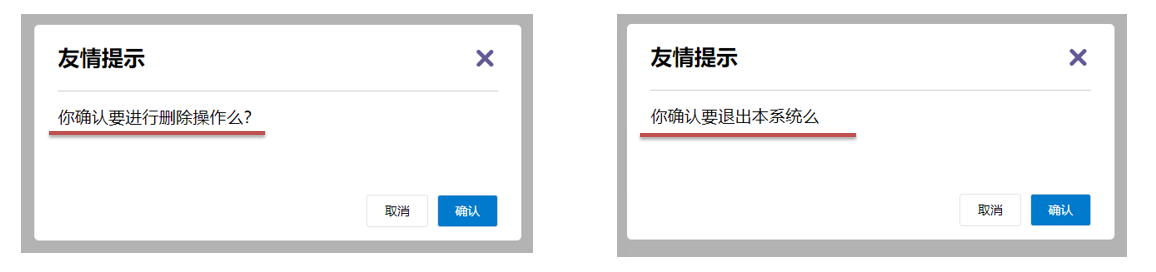
2.需求
将需要多次显示的对话框,封装成一个组件
3.问题
组件的内容部分,不希望写死,希望能使用的时候自定义。怎么办
4.插槽的基本语法
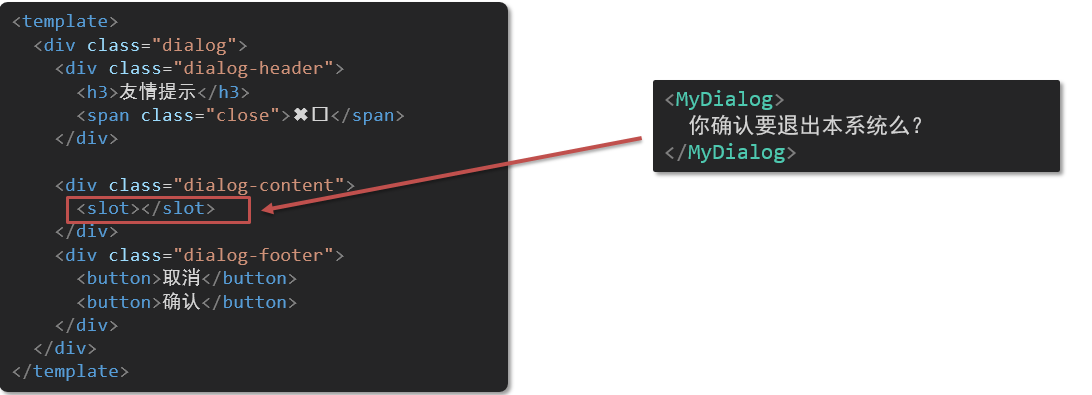
- 组件内需要定制的结构部分,改用
<slot></slot>占位 - 使用组件时,
<MyDialog></MyDialog>标签内部, 传入结构替换slot - 给插槽传入内容时,可以传入纯文本、html标签、组件
5.代码示例
MyDialog.vue
<template>
  <div class="dialog">
    <div class="dialog-header">
      <h3>友情提示</h3>
      <span class="close">✖️</span>
    </div>

    <div class="dialog-content">
       <!-- 1. 在需要定制的位置,使用slot占位 -->
      <slot></slot>
    </div>
    <div class="dialog-footer">
      <button>取消</button>
      <button>确认</button>
    </div>
  </div>
</template>

<script>
export default {
  data () {
    return {

    }
  }
}
</script>

<style scoped>

</style>
App.vue
<template>
  <div>
    <MyDialog>
      <p>你确认要退出么</p>
    </MyDialog>
  </div>
</template>

<script>
import MyDialog from './components/MyDialog.vue'
export default {
  data () {
    return {

    }
  },
  components: {
    MyDialog
  }
}
</script>

<style>
body {
  background-color: #b3b3b3;
}
</style>
六、插槽-后备内容(默认值)
1.问题
通过插槽完成了内容的定制,传什么显示什么, 但是如果不传,则是空白
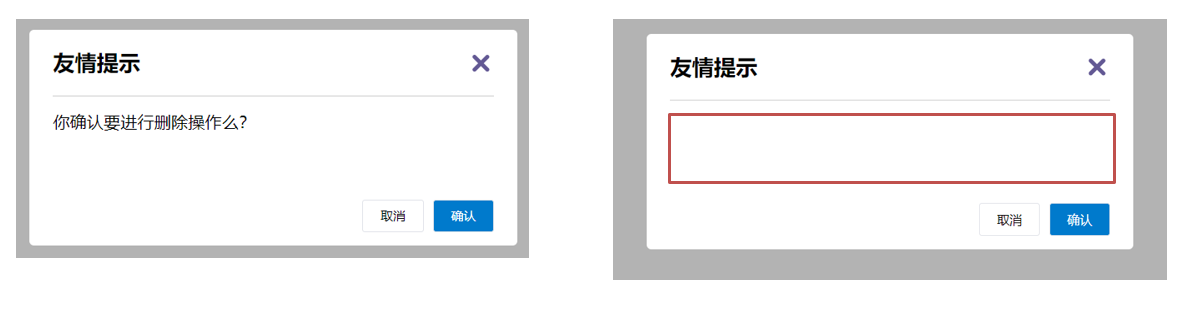
能否给插槽设置 默认显示内容 呢?
2.插槽的后备内容
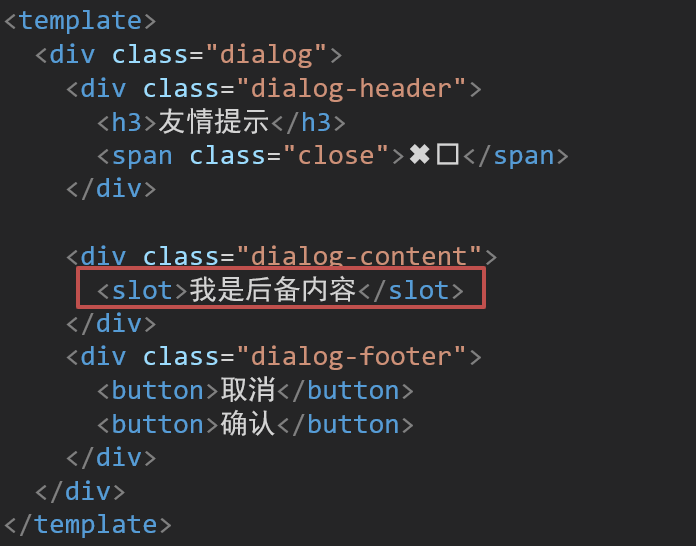
封装组件时,可以为预留的 <slot> 插槽提供后备内容(默认内容)。
3.语法
在 <slot> 标签内,放置内容, 作为默认显示内容
4.效果
外部使用组件时,不传东西,则slot会显示后备内容

外部使用组件时,传东西了,则slot整体会被换掉

七、插槽-具名插槽
1.需求
一个组件内有多处结构,需要外部传入标签,进行定制
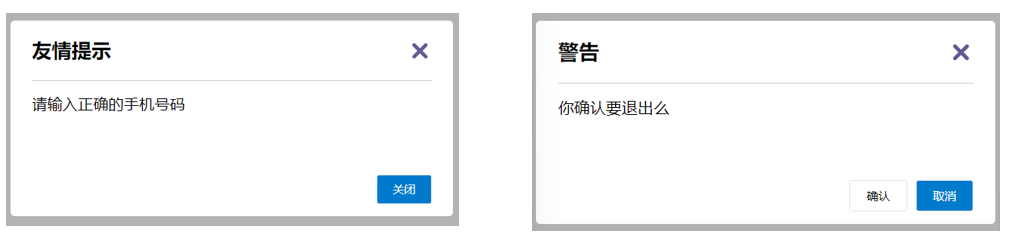
上面的弹框中有三处不同,但是默认插槽只能定制一个位置,这时候怎么办呢?
2.具名插槽语法
多个slot使用name属性区分名字
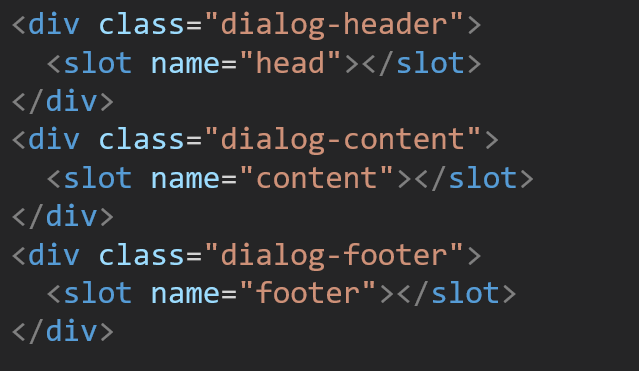
template配合v-slot:名字来分发对应标签
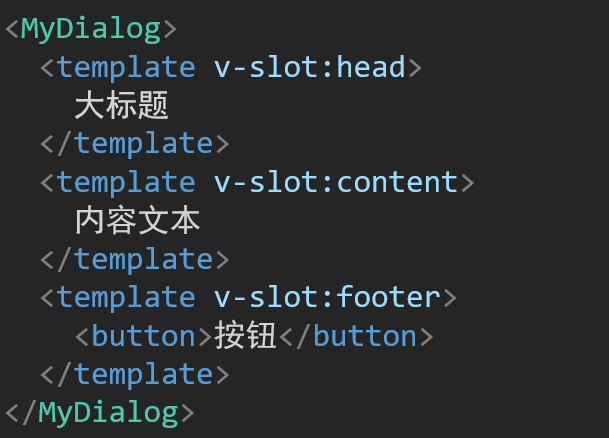
3.v-slot的简写
v-slot写起来太长,vue给我们提供一个简单写法 v-slot —> #
八、作用域插槽
1.插槽分类
默认插槽
具名插槽
插槽只有两种,作用域插槽不属于插槽的一种分类。
定义 slot插槽的同时,是可以传值的。给插槽上可以绑定数据,将来使用组件时可以用。
如何理解这句话呢: 默认插槽和具名插槽。默认插槽指的是没有指定名称的插槽,具名插槽指的是指定了名称的插槽。而作用域插槽 并不是插槽的一种分类,它是一种特殊的方式来在父组件中访问子组件中的数据。
2.作用
定义slot 插槽的同时, 是可以传值的。给 插槽 上可以 绑定数据,将来 使用组件时可以用
3.场景
封装表格组件
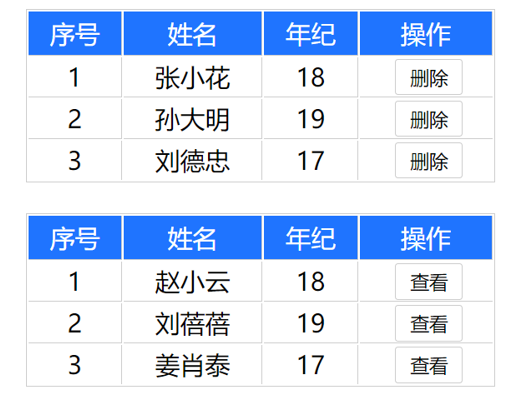
在实际开发中,类似这种,表格很常见,一般我们都是,通过父组件,使用封装好的表格组件,只要把数据传给子组件MyTable.vue,但是,这个 操作 栏,删除,又是要把子组件数据,通过slot传给父组件。
思路:
父传子,动态渲染表格内容
利用默认插槽,定制操作列
删除 或 查看 都需要用到当前项的
id,属于组件内部的数据通过作用域插槽传值绑定,进而使用。
4.使用步骤
给 slot 标签, 以 添加属性的方式传值,这里的
id、msg都属于传值的属性。<slot :id="item.id" msg="测试文本"></slot>所有添加的属性, 都会被收集到一个对象中
{ id: 3, msg: '测试文本' }在template中, 通过
#插槽名= "obj"接收,默认插槽名为 default<MyTable :list="list"> <template #default="obj"> <button @click="del(obj.id)">删除</button> </template> </MyTable>
5.代码示例
MyTable.vue
<template>
  <table class="my-table">
    <thead>
      <tr>
        <th>序号</th>
        <th>姓名</th>
        <th>年纪</th>
        <th>操作</th>
      </tr>
    </thead>
    <tbody>
      <tr v-for="(item,index) in data" :key="item.id">
        <td>{{ index+1 }}</td>
        <td>{{item.name}}</td>
        <td>{{ item.age }}</td>
        <td>
          <!-- <button>删除</button> -->
          <slot :item="item" msg="测试" name="btn"></slot>
        </td>
      </tr>
    </tbody>
  </table>
</template>

<script>
export default {
  props: {
    data: Array
  }
}
</script>

<style scoped>
</style>
重点内容
其中:<slot :item="item" msg="测试" name="btn"></slot>,也可以写成<slot :row="item" msg="测试" name="btn"></slot>
默认会将所有的item、msg或者row属性,添加到一个对象中。可以理解成下面json数据
{
  row:{
    id:2,
    name:'张三',
    age:19
  }
  msg:'测试'
}
App.vue
<template>
  <div>
    <MyTable :data="list">
      <template #btn="obj">
        <button @click="del(obj.item.id)">
          删除
        </button>
      </template>
    </MyTable>
    <MyTable :data="list2">
      <!-- 这里直接解构obj数据中的item -->
      <template v-slot:btn="{item}">
        <button @click="show(item)">
          查看
        </button>
      </template>
    </MyTable>
  </div>
</template>

<script>
  import MyTable from './components/MyTable.vue'
  export default {
    data () {
      return {
     	list: [
            { id: 1, name: '张小花', age: 18 },
            { id: 2, name: '孙大明', age: 19 },
            { id: 3, name: '刘德忠', age: 17 },
          ],
          list2: [
            { id: 1, name: '赵小云', age: 18 },
            { id: 2, name: '刘蓓蓓', age: 19 },
            { id: 3, name: '姜肖泰', age: 17 },
          ]
      }
    },
    methods:{
    del(id){
      console.log(id);
    },
    show (item) {
      // console.log(row);
      alert(`姓名:${item.name}; 年纪:${item.age}`)
    }
  },
    components: {
      MyTable
    }
  }
</script>
九、综合案例 - 商品列表-MyTag组件抽离
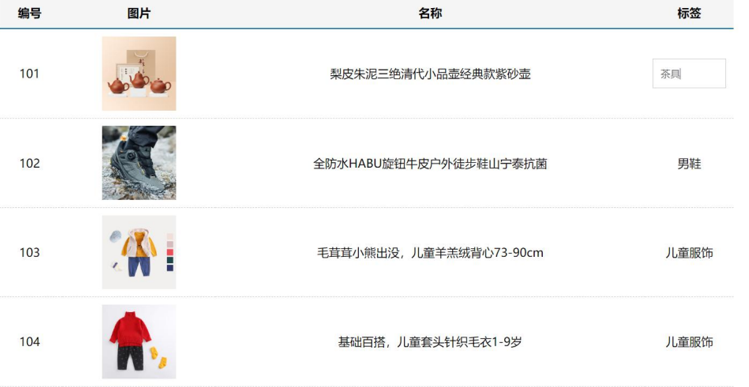
需求说明
- my-tag 标签组件封装
(1) 双击显示输入框,输入框获取焦点
(2) 失去焦点,隐藏输入框
(3) 回显标签信息
(4) 内容修改,回车 → 修改标签信息
- my-table 表格组件封装
(1) 动态传递表格数据渲染
(2) 表头支持用户自定义
(3) 主体支持用户自定义
综合案例-完整代码
App.vue
<template>
  <div class="table-case">
    <MyTable :data="goods">
      <template #head>
        <th>编号</th>
        <th>名称</th>
        <th>图片</th>
        <th width="100px">标签</th>
      </template>

      <template #body="{ item, index }">
        <td>{{ index + 1 }}</td>
        <td>{{ item.name }}</td>
        <td>
          <img
            :src="item.picture"
          />
        </td>
        <td>
          <MyTag v-model="item.tag"></MyTag>
        </td>
      </template>
    </MyTable>
  </div>
</template>

<script>
// my-tag 标签组件的封装
// 1. 创建组件 - 初始化
// 2. 实现功能
//    (1) 双击显示,并且自动聚焦
//        v-if v-else @dbclick 操作 isEdit
//        自动聚焦:
//        1. $nextTick => $refs 获取到dom,进行focus获取焦点
//        2. 封装v-focus指令

//    (2) 失去焦点,隐藏输入框
//        @blur 操作 isEdit 即可

//    (3) 回显标签信息
//        回显的标签信息是父组件传递过来的
//        v-model实现功能 (简化代码)  v-model => :value 和 @input
//        组件内部通过props接收, :value设置给输入框

//    (4) 内容修改了,回车 => 修改标签信息
//        @keyup.enter, 触发事件 $emit('input', e.target.value)

// ---------------------------------------------------------------------

// my-table 表格组件的封装
// 1. 数据不能写死,动态传递表格渲染的数据  props
// 2. 结构不能写死 - 多处结构自定义 【具名插槽】
//    (1) 表头支持自定义
//    (2) 主体支持自定义

import MyTag from './components/MyTag.vue'
import MyTable from './components/MyTable.vue'
export default {
  name: 'TableCase',
  components: {
    MyTag,
    MyTable
  },
  data () {
    return {
      // 测试组件功能的临时数据
      tempText: '水杯',
      tempText2: '钢笔',
      goods: [
        { id: 101, picture: 'https://yanxuan-item.nosdn.127.net/f8c37ffa41ab1eb84bff499e1f6acfc7.jpg', name: '梨皮朱泥三绝清代小品壶经典款紫砂壶', tag: '茶具' },
        { id: 102, picture: 'https://yanxuan-item.nosdn.127.net/221317c85274a188174352474b859d7b.jpg', name: '全防水HABU旋钮牛皮户外徒步鞋山宁泰抗菌', tag: '男鞋' },
        { id: 103, picture: 'https://yanxuan-item.nosdn.127.net/cd4b840751ef4f7505c85004f0bebcb5.png', name: '毛茸茸小熊出没,儿童羊羔绒背心73-90cm', tag: '儿童服饰' },
        { id: 104, picture: 'https://yanxuan-item.nosdn.127.net/56eb25a38d7a630e76a608a9360eec6b.jpg', name: '基础百搭,儿童套头针织毛衣1-9岁', tag: '儿童服饰' },
      ]
    }
  }
}
</script>

<style lang="less" scoped>
.table-case {
  width: 1000px;
  margin: 50px auto;
  img {
    width: 100px;
    height: 100px;
    object-fit: contain;
    vertical-align: middle;
  }
}

</style>
MyTable.vue
<template>
  <table class="my-table">
    <thead>
      <tr>
        <slot name="head"></slot>
      </tr>
    </thead>
    <tbody>
      <tr v-for="(item, index) in data" :key="item.id">
        <slot name="body" :item="item" :index="index" ></slot>
      </tr>
    </tbody>
  </table>
</template>

<script>
export default {
  props: {
    data: {
      type: Array,
      required: true
    }
  }
};
</script>

<style lang="less" scoped>

.my-table {
  width: 100%;
  border-spacing: 0;
  img {
    width: 100px;
    height: 100px;
    object-fit: contain;
    vertical-align: middle;
  }
  th {
    background: #f5f5f5;
    border-bottom: 2px solid #069;
  }
  td {
    border-bottom: 1px dashed #ccc;
  }
  td,
  th {
    text-align: center;
    padding: 10px;
    transition: all .5s;
    &.red {
      color: red;
    }
  }
  .none {
    height: 100px;
    line-height: 100px;
    color: #999;
  }
}

</style>
MyTag.vue
<template>
  <div class="my-tag">
    <input
      v-if="isEdit"
      v-focus
      ref="inp"
      class="input"
      type="text"
      placeholder="输入标签"
      :value="value"
      @blur="isEdit = false"
      @keyup.enter="handleEnter"
    />
    <div
      v-else
      @dblclick="handleClick"
      class="text">
      {{ value }}
    </div>
  </div>
</template>

<script>
export default {
  props: {
    value: String
  },
  data () {
    return {
      isEdit: false
    }
  },
  methods: {
    handleClick () {
      // 双击后,切换到显示状态 (Vue是异步dom更新)
      this.isEdit = true

      // // 等dom更新完了,再获取焦点
      // this.$nextTick(() => {
      //   // 立刻获取焦点
      //   this.$refs.inp.focus()
      // })
    },
    handleEnter (e) {
      // 非空处理
      if (e.target.value.trim() === '') return alert('标签内容不能为空')

      // 子传父,将回车时,[输入框的内容] 提交给父组件更新
      // 由于父组件是v-model,触发事件,需要触发 input 事件
      this.$emit('input', e.target.value)
      // 提交完成,关闭输入状态
      this.isEdit = false
    }
  }
}
</script>

<style lang="less" scoped>
.my-tag {
  cursor: pointer;
  .input {
    appearance: none;
    outline: none;
    border: 1px solid #ccc;
    width: 100px;
    height: 40px;
    box-sizing: border-box;
    padding: 10px;
    color: #666;
    &::placeholder {
      color: #666;
    }
  }
}
</style>
main.js
import Vue from 'vue'
import App from './App.vue'

Vue.config.productionTip = false

// 封装全局指令 focus
Vue.directive('focus', {
  // 指令所在的dom元素,被插入到页面中时触发
  inserted (el) {
    el.focus()
  }
})


new Vue({
  render: h => h(App),
}).$mount('#app')
十、单页应用程序介绍
1.概念
单页应用程序:SPA【Single Page Application】是指所有的功能都在一个html页面上实现
2.具体示例
单页应用网站: 网易云音乐 https://music.163.com/
多页应用网站:京东 https://jd.com/
3.单页应用 VS 多页面应用
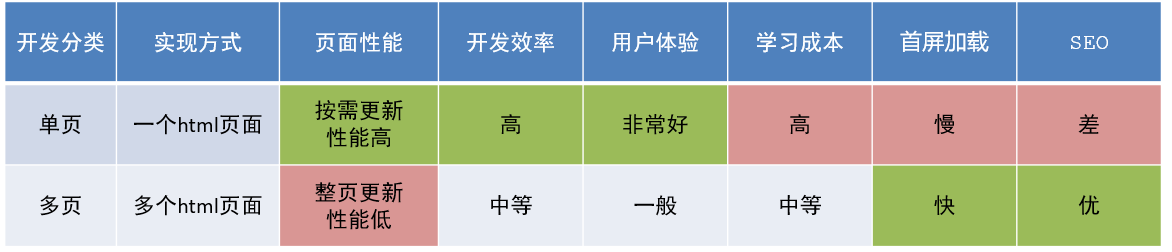
单页应用类网站:系统类网站 / 内部网站 / 文档类网站 / 移动端站点
多页应用类网站:公司官网 / 电商类网站
十一、路由介绍
1.思考
单页面应用程序,之所以开发效率高,性能好,用户体验好
最大的原因就是:页面按需更新
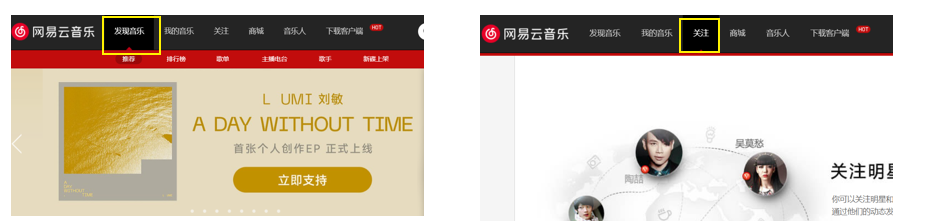
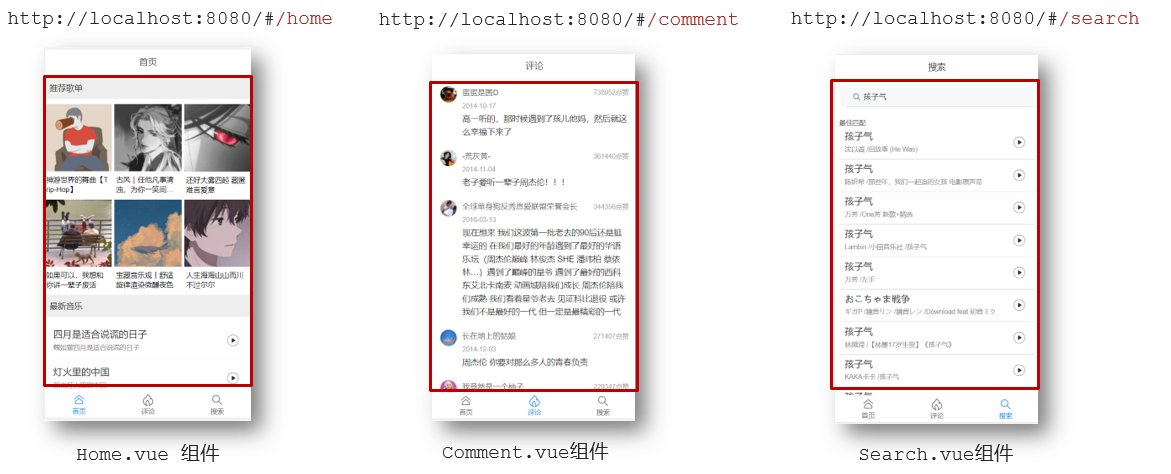
比如当点击【发现音乐】和【关注】时,只是更新下面部分内容,对于头部是不更新的
要按需更新,首先就需要明确:访问路径和 组件的对应关系!
访问路径 和 组件的对应关系如何确定呢? 路由
2.路由的介绍
生活中的路由:设备和ip的映射关系
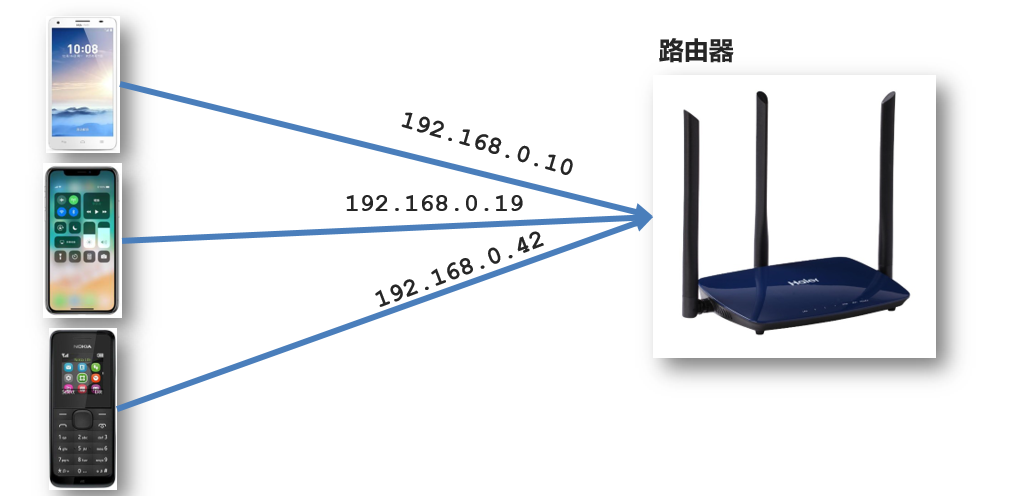
Vue中的路由:路径和组件的映射关系
十二、路由的基本使用
1.目标
认识插件 VueRouter,掌握 VueRouter 的基本使用步骤
2.作用
修改地址栏路径时,切换显示匹配的组件
3.说明
Vue 官方的一个路由插件,是一个第三方包
4.官网
https://v3.router.vuejs.org/zh/
5.VueRouter的使用(5+2)
固定5个固定的步骤(不用死背,熟能生巧)
下载 VueRouter 模块到当前工程,版本3.6.5
yarn add vue-router@3.6.5main.js中引入VueRouter
import VueRouter from 'vue-router'安装注册
Vue.use(VueRouter)创建路由对象
const router = new VueRouter()注入,将路由对象注入到new Vue实例中,建立关联
new Vue({
  render: h => h(App),
  router:router
}).$mount('#app')
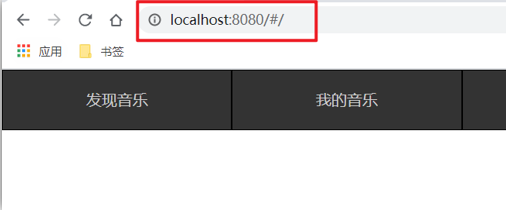
当我们配置完以上5步之后 就可以看到浏览器地址栏中的路由 变成了 /#/的形式。表示项目的路由已经被Vue-Router管理了
6.代码示例
main.js
import Vue from 'vue'
import App from './App.vue'

import VueRouter from 'vue-router'
// 路由的使用步骤 5 + 2
// 5个基础步骤
// 1. 下载 v3.6.5
// 2. 引入
// 3. 安装注册 Vue.use(Vue插件)
// 4. 创建路由对象
// 5. 注入到new Vue中,建立关联

// 2个核心步骤
// 1. 建组件(views目录),配规则
// 2. 准备导航链接,配置路由出口(匹配的组件展示的位置)
import Find from './views/Find'
import My from './views/My'
import Friend from './views/Friend'

Vue.use(VueRouter) // VueRouter插件初始化

const router = new VueRouter({
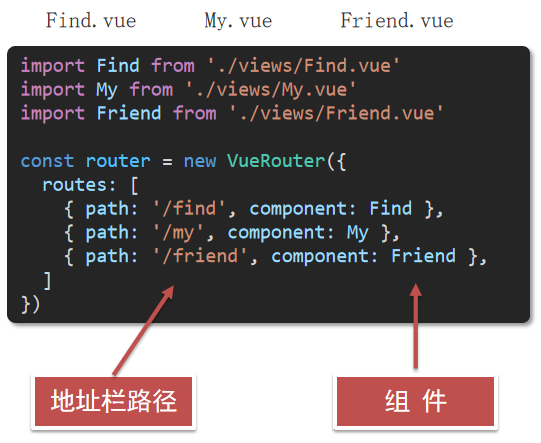
  // routes 路由规则们
  // route  一条路由规则 { path: 路径, component: 组件 }
  routes: [
    { path: '/find', component: Find },
    { path: '/my', component: My },
    { path: '/friend', component: Friend },
  ]
})

Vue.config.productionTip = false

new Vue({
  render: h => h(App),
  router
}).$mount('#app')
7.两个核心步骤
创建需要的组件 (views目录),配置路由规则
配置导航,配置路由出口(路径匹配的组件显示的位置)
App.vue
<div class="footer_wrap">
  <a href="#/find">发现音乐</a>
  <a href="#/my">我的音乐</a>
  <a href="#/friend">朋友</a>
</div>
<div class="top">
  <!-- 路由出口 → 匹配的组件所展示的位置 -->
  <router-view></router-view>
</div>
十三、组件的存放目录问题
注意: .vue文件 本质无区别
1.组件分类
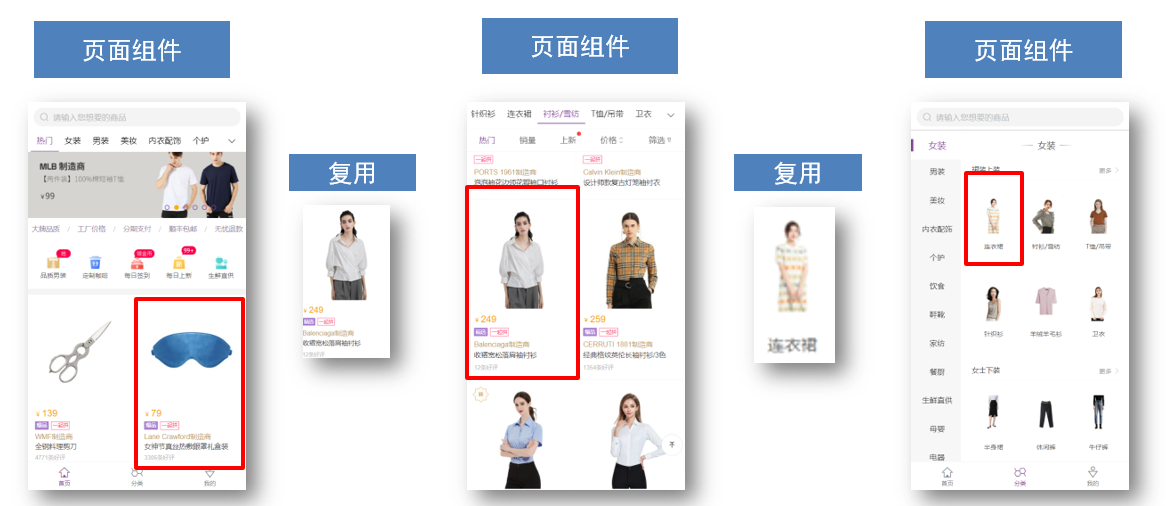
.vue文件分为2类,都是 .vue文件(本质无区别)
- 页面组件 (配置路由规则时使用的组件)
- 复用组件(多个组件中都使用到的组件)
2.存放目录
分类开来的目的就是为了 更易维护
src/views文件夹页面组件 - 页面展示 - 配合路由用
src/components文件夹复用组件 - 展示数据 - 常用于复用
十四、路由的封装抽离
问题:所有的路由配置都在main.js中合适吗?
目标:将路由模块抽离出来。 好处:拆分模块,利于维护
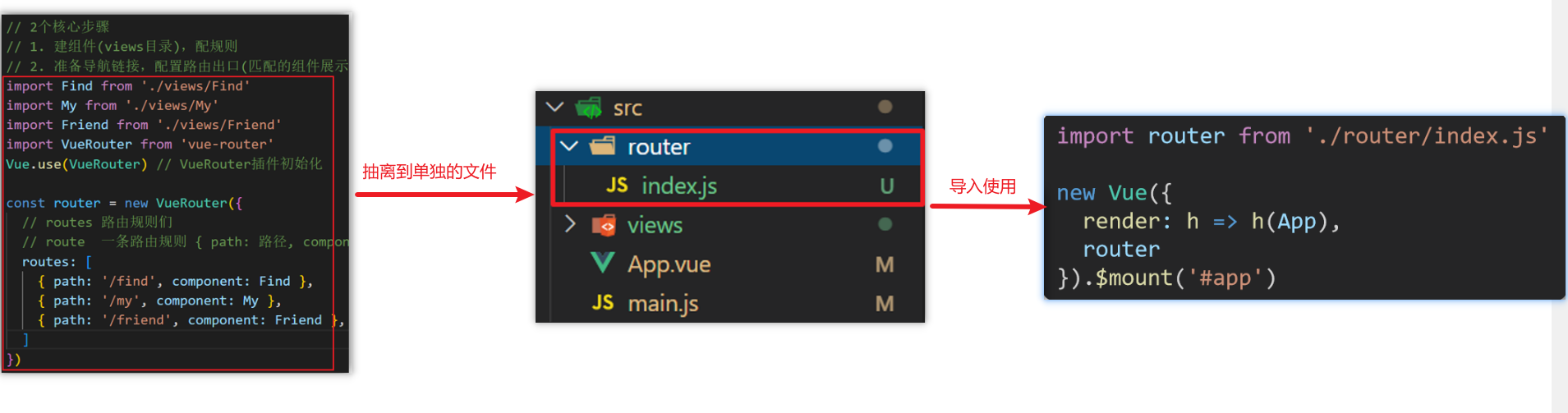
路径简写:
脚手架环境下 @指代src目录,可以用于快速引入组件。